
How to Start Mining on the Bit Mind Subnet (TensorDock): A Simple Step-by-Step Tutorial.


This step-by-step guide covers the entire BitMind Subnet miner onboarding process using TensorDock. We will walk you through topics including compute acquisition, subnet installation, miner model training, registration, and deployment. Ready? Let's get started.
Step 1 - Select GPU or CPU instance depending on your needs
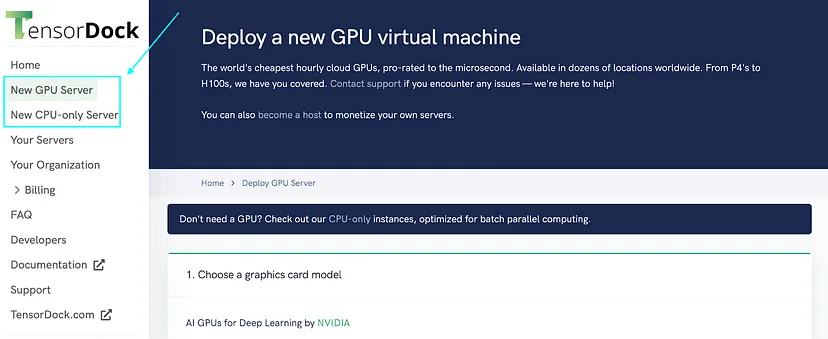
Select a type of machine (GPU/CPU only). If you’re deploying a machine to train, you’ll need a GPU. If you’re deploying our base model, or one that is similarly lightweight, you only need a CPU.
Action: Click “New GPU Server” or “New CPU-only Server”
2. Configure Resources
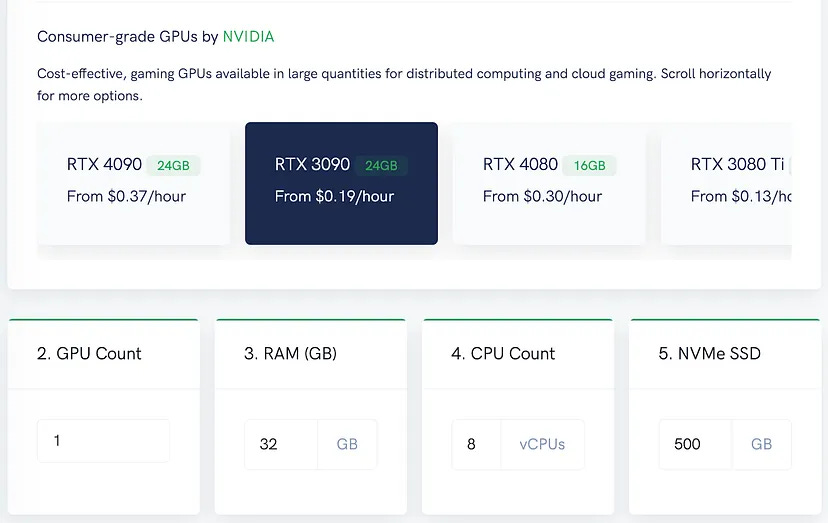
Action: Select the number of cores, amount of RAM and storage, and (optionally) your GPU type.
Note: The BitMind team has tested training on RTX 30 and 40 series GPUs, so these are recommended, but not required.
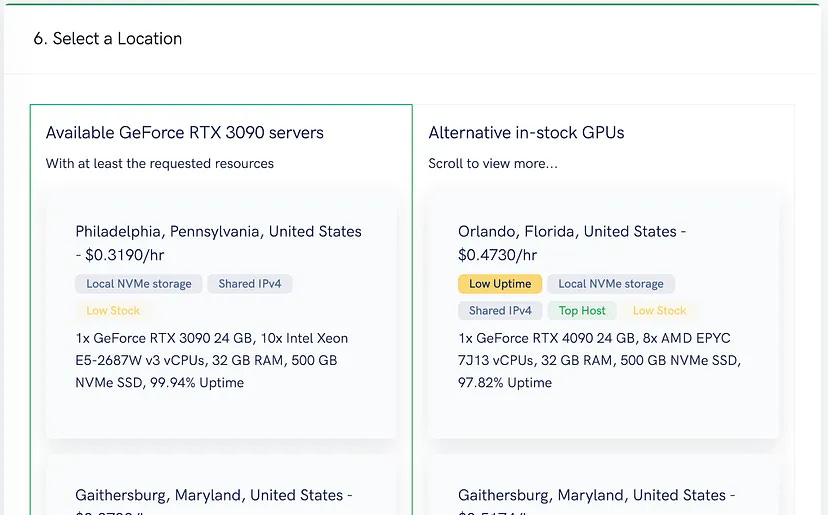
Action: Based on your chosen resources, select a desired region.
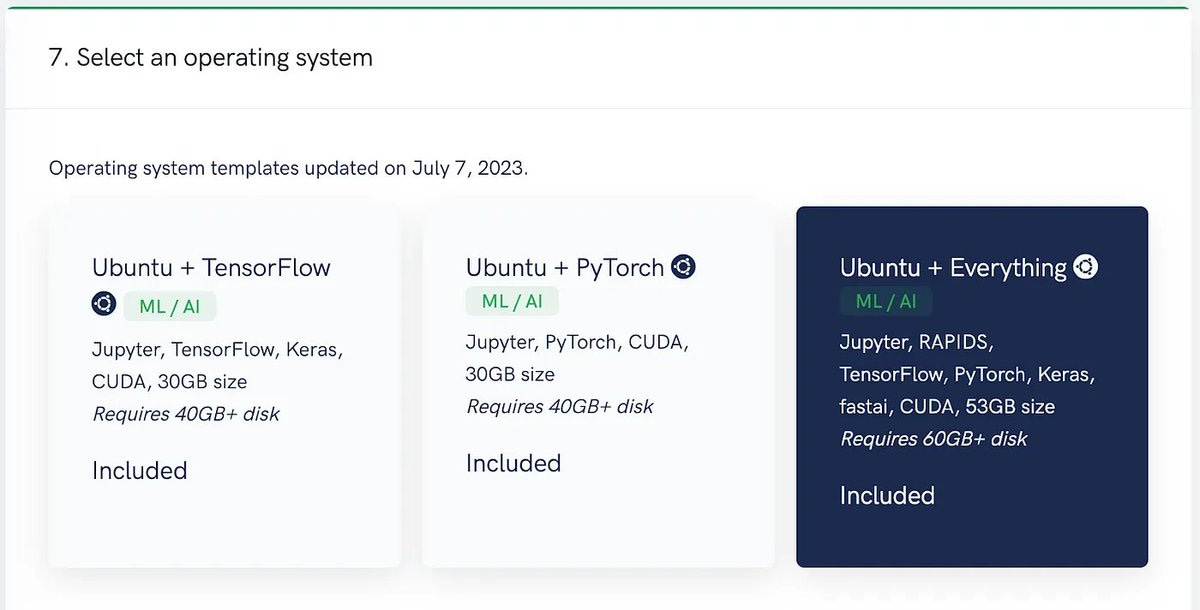
Action: Select “Ubuntu + Everything” your OS template, for both CPU and GPU instance types. This comes with everything you need to train or deploy your miner.
3. Configure Network Settings
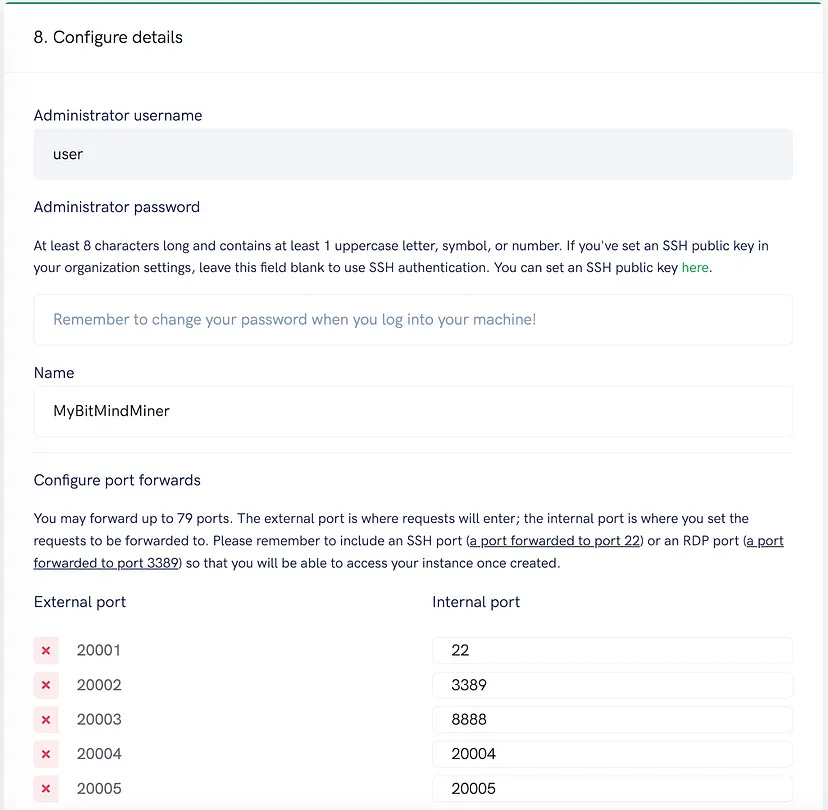
Action: Set your machine’s name (just for display purposes in TensorDock), your password, and importantly, make sure to expose at least 1 symmetrical port mapping. Adding this mapping will allow your miner to receive requests from BitMind Subnet validators, by ensuring that the port number communicated by your miner axon matches the port number the external world sees.
4. Deploy your Machine and SSH in
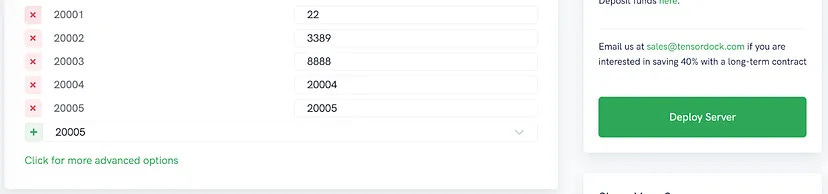
Action: Click deploy and give TensorDock a few minutes to spin up your machine
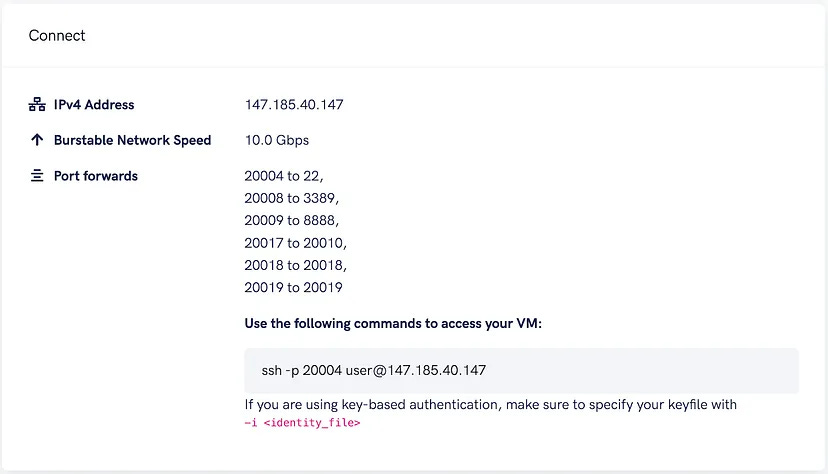
Action: Once your machine is up and running, you can find your ssh command under My Servers > MyBitmindMiner > Connect. Copy and paste this command into your local terminal, and enter the password you set in step 3 when prompted.
5. Clone and Navigate to Repository
Action: In the terminal, enter the following command to clone the BitMind subnet repository and navigate into it: git clone
https://github.com/bitmind-ai/bitmind-subnet.git
&& cd bitmind-subnet
6. Install System Dependencies
Action: Run the following commands to make the install script executable and execute it:
chmod +x install_system_deps.sh ./install_system_deps.sh
Tip: If you run into warnings such as
Waiting for cache lock: Could not get lock /var/lib/dpkg/lock-frontend. It is held by process 4295
you can run
sudo reboot
and reconnect to your VM to kill any incomplete processes causing the issue:
https://askubuntu.com/a/1433045
7. Set Up Conda Environment
If you selected the “Ubuntu + Everything” operating system template, your machine will be preconfigured with anaconda.
Action: Run the following command to create a conda environment named bitmind
conda create -y -n bitmind python=3.10 ipython jupyter ipykernel
8. Manage Conda Environment
Action: Activate your newly created virtual environment with:
conda activate bitmind
To deactivate it, use:
conda deactivate
9. Configure Python Package Installer
Action: Before installing any Python packages, set the environment variable to disable pip’s cache:
export PIP_NO_CACHE_DIR=1
10. Complete the setup.
Action: Install the remaining necessary requirements by running the below command. This step may take a few minutes.
pip install -e .
11. Download datasets and train (optional)
Action: If you intend on training a miner, you can download the our open source datasets by running:
python bitmind/download_data.py
Attention: Downloading may take a few minutes depending on your connection and our dataset access points.
Action: You can then run the training script, with any desired modifications. The model with the lowest validation accuracy will be saved to base_miner/checkpoints/<experiment_name>/model_epoch_best.pth
cd base_miner python train_detector.py
Tip: To avoid having your training job die if your ssh session is terminated, start your training job with pm2, which was installed in step 6.
cd base_miner pm2 start train_detector.py --name train --interpreter python3 --no-autorestart
You can view running pm2 jobs with pm2 list, or view logs with pm2 logs train.
Tip: If you happen to run into this warning (below) while using CUDA on TensorDock,
UserWarning: CUDA initialization: Unexpected error from cudaGetDeviceCount(). Did you run some cuda functions before calling NumCudaDevices() that might have already set an error? Error 804: forward compatibility was attempted on non supported HW
try running the following commands in the terminal.
sudo rmmod nvidia_drm sudo rmmod nvidia_modeset sudo rmmod nvidia_uvm sudo rmmod nvidia
For other potential solutions, see
https://stackoverflow.com/a/72443701
.
12. Bittensor wallet setup using btcli.
Action: Refer to Bittensor’s official documentation to set up your wallets (create or regenerate) using btcli. You must have a coldkey and an associated hotkey in order to register and receive a UID.
13. Miner Registration
Action:
Testnet (uses test tao, which can be requested in the Bittensor “Requests for Testnet TAO” Discord channel):
btcli s register --netuid 168 --wallet.name [wallet_name] --wallet.hotkey [wallet.hotkey] --subtensor.network test
Mainnet (costs tao):
btcli s register --netuid 34 --wallet.name [wallet_name] --wallet.hotkey [wallet.hotkey] --subtensor.network finney
14. Mining
Action: Run the following command to begin mining with the base miner, or change the model path to your own:
pm2 start ./neurons/miner.py --name miner --interpreter
_PREFIX/bin/python3 -- --neuron.model_path ./mining_models/base.pth --netuid XX --subtensor.network <LOCAL/FINNEY/TEST> --wallet.name <WALLET NAME> --wallet.hotkey <HOTKEY NAME> --axon.port <PORT>
Parameter information:
Testnet: uid: 168, network: test
Mainnet: uid: 34, network: finney
axon.port is configurable by miners and is 8091 by default.
Attention: To stop your miner, run:
pm2 delete miner
Stay tuned for additional information on training your miner!
Additional resources: